
Is Google AI Studio Really Worth the Hype? 4 Reasons Developers and Non-Coders Are Switching
 Kishor Kumar Bairagi12 Oct, 2026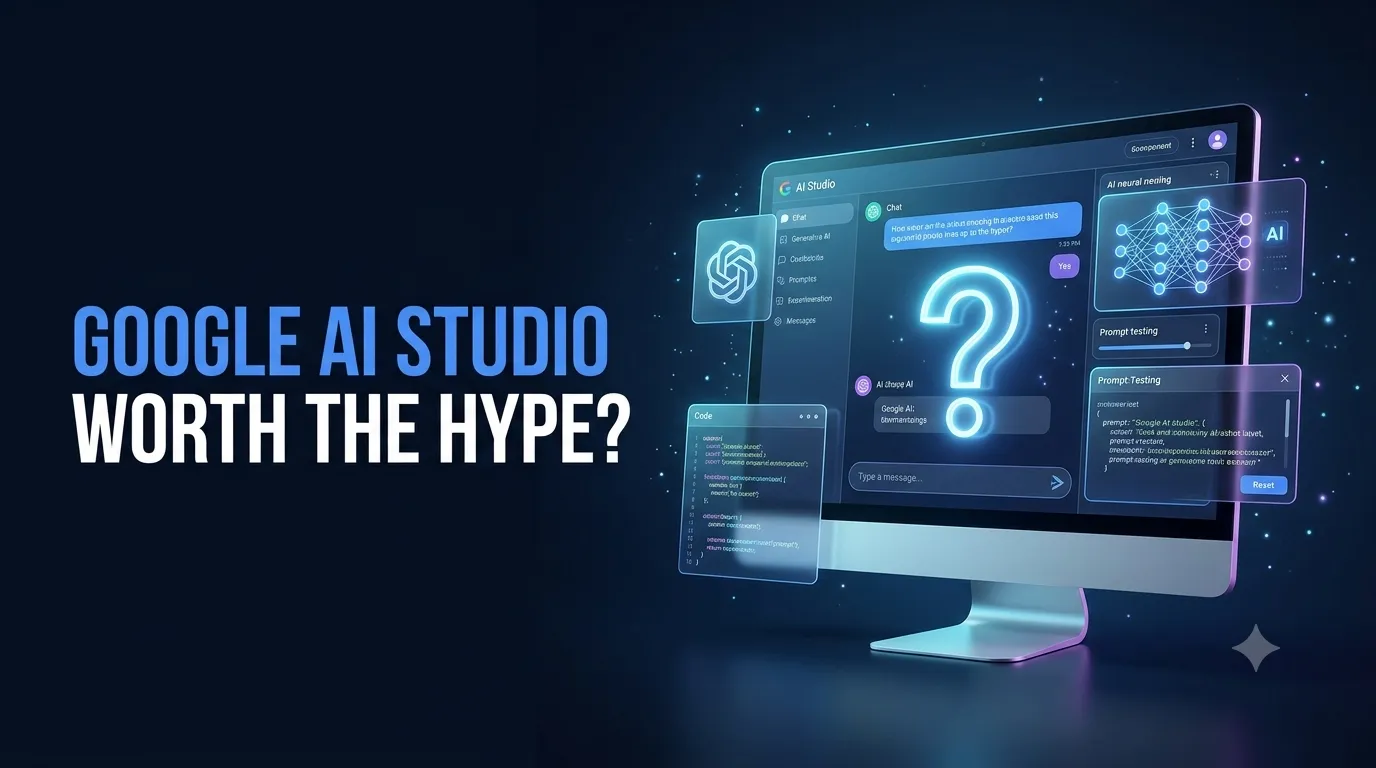
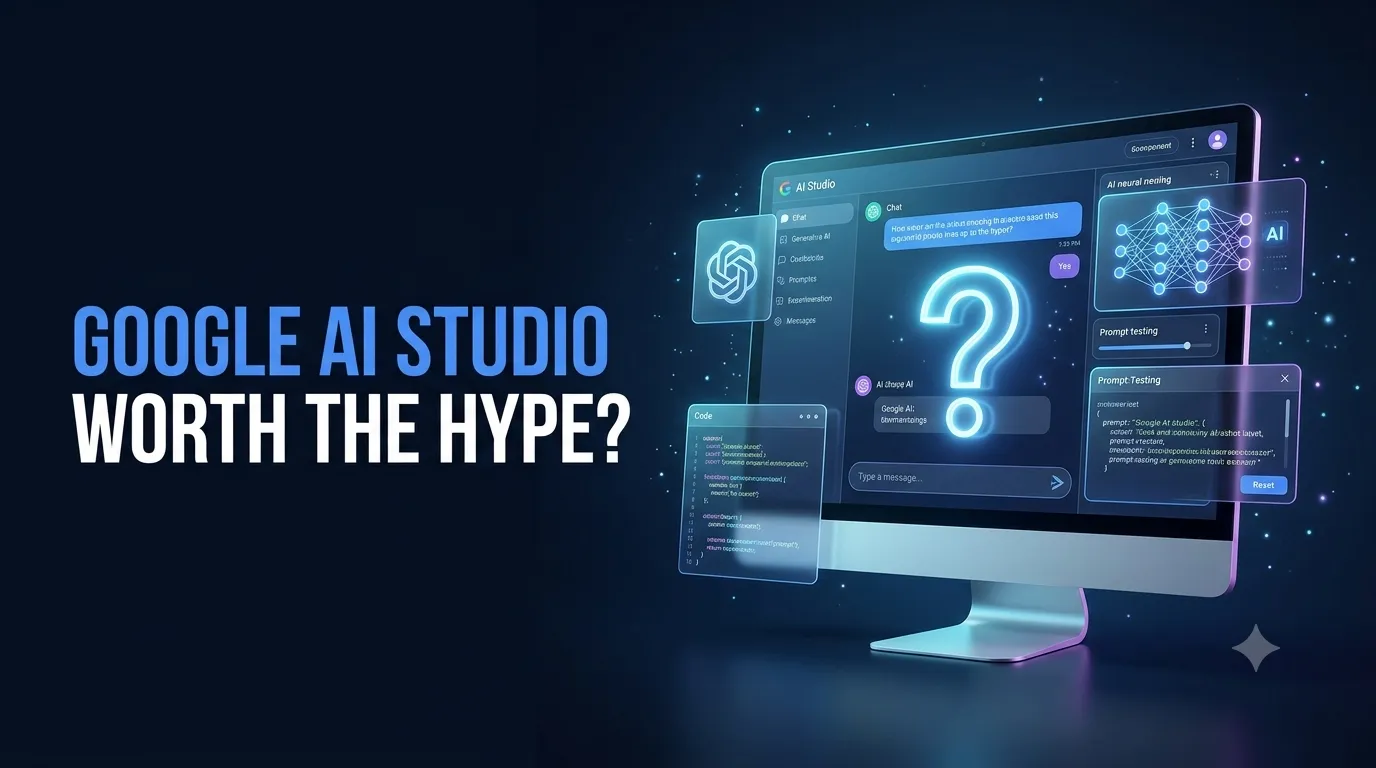
Building a working app no longer requires knowing how to code. Until recently, even a simple web application meant learning front-end tools such as React and Tailwind, hiring someone who already had them, setting up backend servers and paying for access to an AI API. Today, a single prompt written in plain English can produce a fully functional dashboard within minutes, without a line of code or a rupee spent.
That is the promise of Google AI Studio, and it is why half the internet is arguing about it. Is it genuinely powerful, or just a shiny demo machine? Let's find out.
The big debate: "Google AI Studio is overrated" versus "it's the most powerful free tool for builders." Is it worth the hype?
Grab a coffee: we'll build a real app, then judge it.
What Is Google AI Studio and How Is It Different From Gemini?
If Gemini feels familiar, AI Studio will too, at first glance. The interface is clean and uncluttered. But the similarity ends there.
Gemini is a chat model. You talk to it, ask questions and generate images. That is pretty much where it stops: you cannot build anything with it.
AI Studio is a builder's workspace. You can chat with the model, but you can also turn a written prompt into a working web app, complete with a live preview. Getting started takes three steps:
-
Search for Google AI Studio and open the first link.
-
Switch to Build mode.
-
Type what you want, in plain English, and hit build.
New to the basics of how AI models work? A quick read through the PW Medharthi tutorials is a good way to get comfortable with the vocabulary before you start building.
A Quick Test: One Prompt, One Full Dashboard
Knowing the difference between Gemini and AI Studio is one thing. Seeing what Build mode can actually do is another. So instead of a boring resume builder or invoice generator, here is a real-world, non-generic project: VideoPulse AI, a video insights dashboard that turns a video into chapters, social media clips and key takeaways.
The 1st prompt asked for a modern single-page app with:
-
A sleek dark, glassmorphism-style interface
-
A video upload area on the left
-
A right-hand panel with three tabs: interactive chapters, viral social media clips with timestamps, and a key takeaways dashboard
-
Visually appealing cards and a single-click copy button
In the background, AI Studio assembled the React environment, the layout design and the event listeners. Within roughly 20 to 40 seconds, a live preview was ready. No code editor, no local server. The result looked like a professional SaaS tool: neon-dark styling, responsive tabs, an upload box and copy buttons, all generated automatically.
Then came the follow-up prompt:
‘Add a working video player, parse sample transcript data, make the chapters clickable and generate ready-to-post Twitter and LinkedIn snippets. Click a chapter or a key takeaway on the right, and the player on the left jumps to that exact timestamp.’
A professional developer would likely need three to four days for the UI and logic of a full-stack video dashboard like this. Here, plain English got it done in about four minutes.
The process of making changes is straightforward. If you need to add an “Export Report to PDF” button or modify the interface’s colour theme, simply describe the changes in the chat. The preview updates instantly, without requiring you to write or modify any code.
Thinking about going deeper into computer applications? Explore the Online MCA programme by PW Medharthi and learn how apps like this work from the inside.
Try It Yourself: Build VideoPulse AI Step by Step
Reading about it is fun. Building it is better. Here is the exact flow, so you can follow along in a few minutes.
Step 1: Open AI Studio. Search for "Google AI Studio" and click the first link. You will land on a clean, Gemini-like interface.
Step 2: Switch to Build mode. This is where prompts turn into working apps.
Step 3: Paste your base prompt. Rename the tool if you like; the name can be anything.
‘Build a modern single-page web app for an AI video insights and chapter generation platform called VideoPulse AI. Include a video drop/file import area on the left and an interactive right panel with three tabs: Interactive Chapters, Viral Social Media Clips with timestamps, and a Key Takeaways dashboard. Use HTML, Tailwind CSS and JavaScript.’
Step 4: Click Build and wait. In about 20 to 40 seconds, the live preview loads on the panel. No VS Code, no local server.
Step 5: Add the next layer. Now make it behave like a real tool by sending a follow-up prompt in the chat:
‘Add a functional video player preview widget on the left. When a user uploads or selects a sample video, automatically parse dummy transcript data. Render clickable chapters with timestamps on the video player and generate ready-to-post Twitter and LinkedIn snippets.’
Step 6: Test it. Play the video, then click a chapter or a key takeaway on the right. The player on the left should jump to that exact timestamp.
Step 7: Tweak with plain English. Try "Add an Export report to PDF button" or "Change the colour theme to cyberpunk blue." The preview updates instantly.
Pro tip: Build in layers. Get the design right first, then add the player, then the extras. Short, specific prompts beat one giant wall of text.
Want to take your AI experiments further? Explore Medharthi’s Professional Certificate Programme in Generative AI and Machine Learning by IIT Bhubaneswar to deepen your understanding of generative AI and machine learning and explore their practical applications.
The 4 Reasons People Are Switching
Plenty of tools promise to make building easier. Here is why AI Studio keeps pulling developers and non-coders away from them.
1. A Context Window Built for Big Ideas
AI models do not read text the way we do. They break it into tiny chunks called tokens, and the context window is the number of tokens a model can hold in mind at once. Think of it as the model’s working memory: the larger it is, the more it can see, remember and reason over in a single go.
This is where many popular AI tools start to pinch. Send too much, and you hit a ceiling. AI Studio removes that ceiling, with usage of up to 2 million tokens. Long documents, lengthy conversations and big projects can sit inside one prompt, without chopping them into pieces and hoping nothing gets lost.
Ever pasted a long document into a chatbot, only to hit a limit halfway through? A larger context window removes that frustration.
2. Multimodal From the Ground Up
Most tools handle text well and treat everything else as an afterthought. AI Studio is multimodal natively: text, audio, images, video and code are all rendered and analysed on the same screen. It can work with audio, images and video files of up to an hour alongside your text.
That is exactly what makes a project like VideoPulse AI possible. The tool is not guessing from a written description; it can work with the video itself.
3. Build Mode: Write a Prompt, Watch It Come to Life
Normally, building an app means juggling an editor, a local server and a stack of setup steps before you see a single pixel. Build mode collapses all of that into one window. The code is generated on one side while a live preview appears right beside it. Describe what you want, see it on screen within seconds, then refine it with another line of chat.
There is no complicated setup to get through. The distance between your idea and a working, clickable app has never been shorter.
4. Zero Cost, and That Changes Everything
This is the reason that makes people double-check the pricing page. Enterprise-level Gemini models are available completely free for testing and app creation. Earlier, getting access to an AI API meant paying for it. Here, the whole process, from the very first prompt to the final tweak on the VideoPulse AI dashboard, ran on AI Studio without a single rupee spent.
Not a single rupee spent from the first prompt to the final tweak.
For a beginner testing an idea, or an experienced developer prototyping at speed, free removes the biggest barrier to just trying.
Ready to turn app ideas into a career? Build strong foundations in programming, databases and web development with PW Medharthi's Online BCA programme.
So, Is It Worth the Hype?
For rapid prototyping, yes. Experienced developers can test ideas in minutes instead of days. Non-coders can finally turn app ideas into something they can see, click and show to others.
A fair word of caution: AI Studio is brilliant for getting from idea to working prototype fast, but understanding what is happening under the hood still makes you a better builder. If you can read and tweak what the AI produces, you will get far more out of every prompt.
Key Takeaways
-
Gemini chats, AI Studio builds. Build mode turns plain-English prompts into working web apps.
-
Speed is the headline. A live preview appears in about 20 to 40 seconds, and a full dashboard took around 4 minutes.
-
Four reasons it stands out: a huge context window, native multimodal input, Build mode with live preview, and zero cost.
-
Edits are just chat. Change themes or add buttons without touching code.
-
Layer your prompts. Start with design, then add features one at a time.
-
Fundamentals still matter. Knowing the basics makes every prompt sharper.
Google AI Studio lowers the bar for building real software dramatically. A huge context window, multimodal input, a live Build mode and a zero price tag make a strong case. The best way to judge the hype is to try it yourself: open AI Studio, type one idea, and see what you get in the next 40 seconds.