
Your Website Looks Fine on a Laptop. But What Happens When You Open It on a Phone?
 Mishika Gupta19 Oct, 2026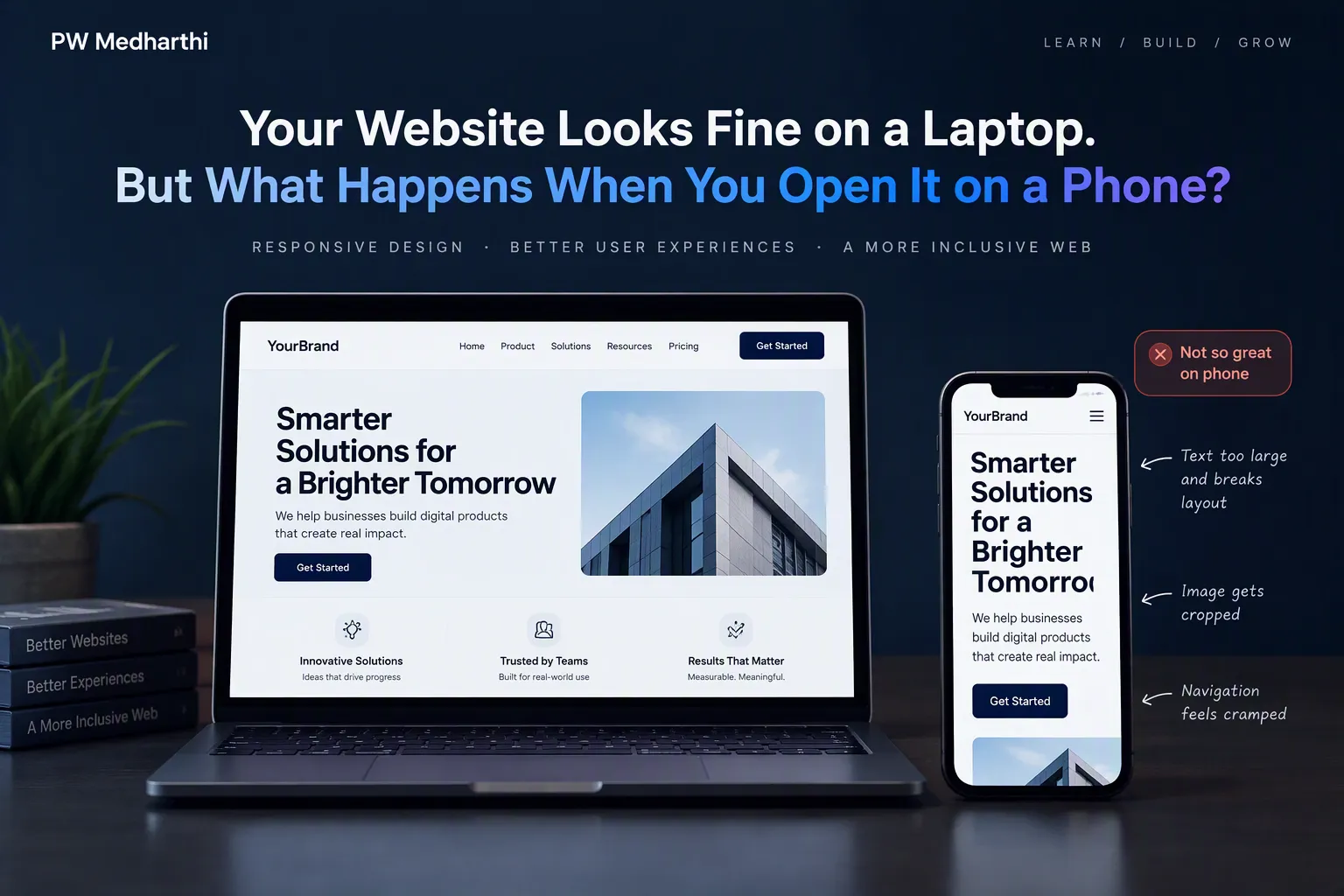
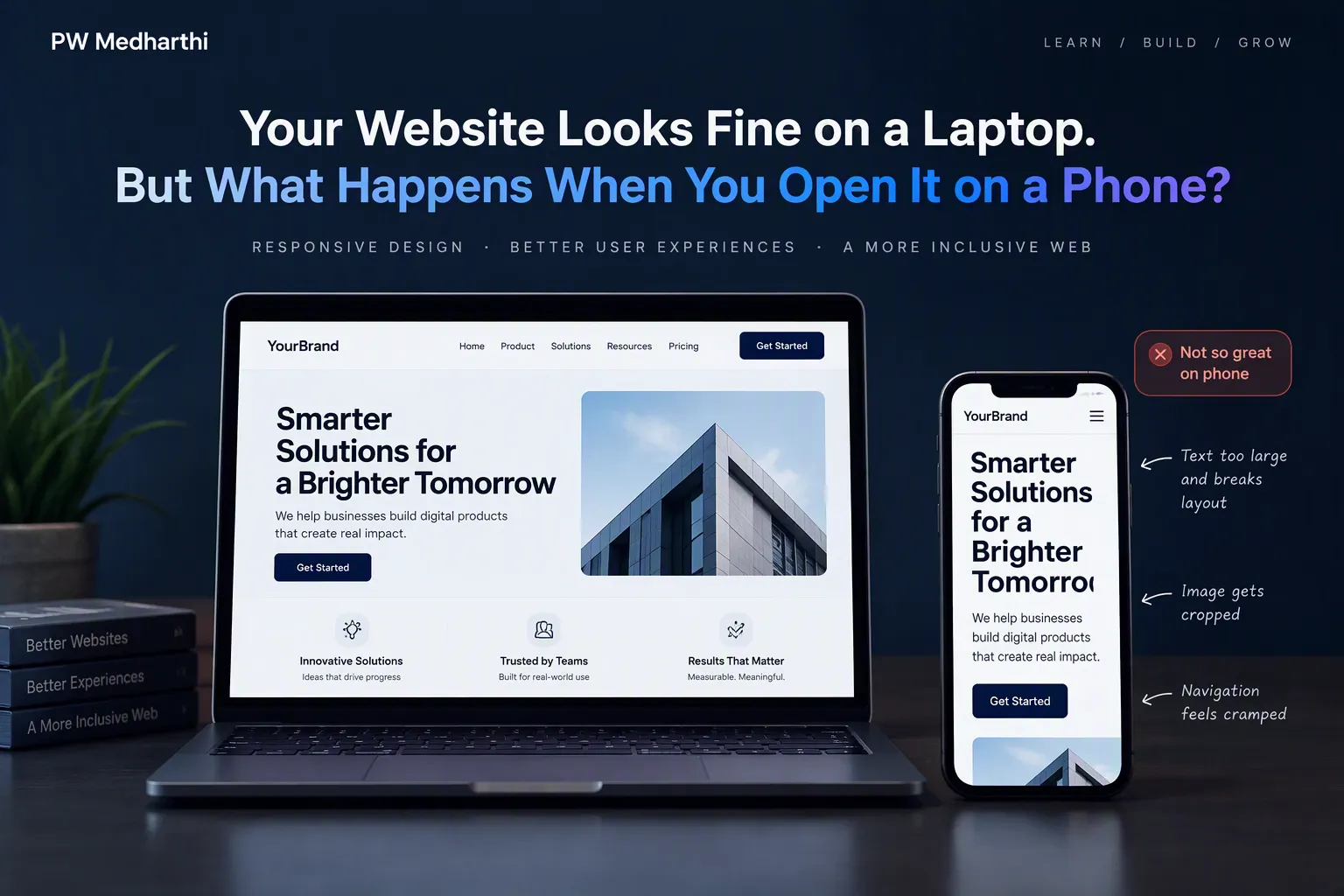
Your website looks sleek on a laptop. The layout is neat, the images look great, and every section seems to fit perfectly. Then someone opens it on a phone, and suddenly the text feels cramped, images look awkward, and buttons are hard to use.
How do you fix it without spending days rebuilding the website?
That is where AI website builders like Lovable can help. You can create a business website, refine its design, check how it looks on mobile, and publish it online without writing code. This tutorial walks you through the process, from your first prompt to your live website.
Step 1: Open Lovable to Start Building Your Website
Before you start building, be clear about the business, its audience, and what visitors should be able to do on the website.
Imagine a fitness coach approaches you for a website. They want visitors to explore their services, view client transformation results, read testimonials, compare pricing plans, and book consultations.
You can use an AI website builder like Lovable to create a website that brings these features together.
Follow these steps:
-
Open your browser and search for Lovable.
-
Open the relevant website and log in.
-
Complete the forms required to set up your account.
-
Once you reach the main workspace, prepare your website prompt.
You are now ready to tell the AI what kind of website you want to create.
Step 2: Write a Detailed Prompt for Your Website
A specific prompt helps the AI understand the website’s purpose, required sections, branding, and mobile layout.
One common mistake beginners make is writing a prompt that is too vague.
For example, if you simply type “Create a fitness website”, the AI has limited information about the design, content, and sections you want. As a result, the website may look average rather than professional.
The solution is to provide more specific instructions.
For the fitness coach's website, your prompt should mention:
-
Website type: A modern website for a personal fitness coach.
-
Required sections: Hero section, client transformations, testimonials, pricing plans, FAQs, and contact form.
-
Brand colours: Black and orange.
-
Mobile responsiveness: The website should adjust to mobile screens.
-
Design and content: The website should have an appropriate layout, written content, and clear call-to-action buttons.
The more clearly you describe your requirements, the better the AI can understand the website you want.
Step 3: Use a Design Reference to Improve the Website's Appearance
A design reference gives the AI clearer visual direction instead of leaving every design choice to chance.
Want your website to look more polished? You can use a design reference to help the AI understand the visual style you want.
Follow these steps:
-
Open a new browser tab and search for Style Reference Design.
-
Open the website and explore the available design references under the Popular section.
-
Choose a design style you like. You can explore references associated with Apple, Cursor, Stripe, ElevenLabs, and other brands.
-
Open your preferred design reference and copy its design.md file.
-
Return to Lovable and enter the instruction: “Use this design system.”
-
Paste the copied design reference and submit your prompt.
Lovable will use your instructions and design reference to generate the website's visual layout, content, call-to-action buttons, and mobile-responsive design.
Once the website is ready, review the sections to see how closely the result matches your requirements. You can then provide additional prompts to make changes wherever needed.
Step 4: Review the Website Generated by AI
Do not assume that every section or interactive element works correctly just because the AI has generated it.
Once Lovable finishes generating your website, review the layout and check whether it includes all the sections you requested.
For the fitness coach's website, check the following:
-
Hero and About sections: Check whether the website introduces the fitness coach and their services.
-
Client transformation results: Look for the before-and-after section displaying client results.
-
Testimonials: Check whether the website includes client feedback.
-
Pricing plans: Review the section displaying service charges.
-
FAQs: Expand and collapse the questions to check whether they work.
-
Booking form: Check whether the form is present and its validation works.
-
Footer and navigation: Review the footer and click the links to check whether they work correctly.
Once you have reviewed the sections and interactive elements, move on to the next step: checking whether the website displays properly on a mobile screen.
Step 5: Check Whether the Website Is Mobile-Responsive
Do not judge your website by its laptop appearance alone. Check its mobile responsiveness before moving to the next step.
A website may look polished on a laptop, but does its layout hold up when you open it on a phone? To find out, check its mobile responsiveness before moving ahead.
Follow these steps:
-
Open the mobile preview: Switch to the mobile view to see how the website adapts to a smaller screen.
-
Review each section: Check whether the hero section, images, pricing plans, and other sections display properly.
-
Scroll through the page: Look at the layout from top to bottom and check whether any sections break or appear out of place.
-
Test the navigation bar: Check whether the navigation menu works correctly in the mobile view.
-
Check the booking form: Review the form and see whether its validation works as expected.
If the sections display properly as you scroll and the navigation and form work correctly, your website is looking good in the mobile preview.
Remember: Do not judge your website by its laptop appearance alone. Check its mobile responsiveness before moving to the next step.
Step 6: Make Changes by Giving the AI New Instructions
You do not have to rebuild the entire website to improve one section; describe the change you want and review the result.
Your first website draft does not have to be your final version. You can ask Lovable to change individual sections without rebuilding the entire website.
For example, if you want to change the main headline, follow these steps:
-
Select the existing header in your website.
-
Copy or identify the text you want to change.
-
Enter a prompt specifying the new headline: “Change the header to ‘Lose Fat, Build Muscle and Stay Consistent.’”
-
Submit the prompt and let Lovable update the section.
-
Review the revised headline to check whether it matches your requirements.
You can follow the same process to modify other sections.
The key is to identify the element you want to change and clearly describe the result you expect.
Step 7: Replace and Adjust the Transformation Images
The fitness website includes a before-and-after section to display client transformation results.
If you do not have images available, you can use ChatGPT to generate two images for this section, as shown in the workflow.
Once you have the images, follow these steps:
-
Provide the two images to Lovable.
-
Identify the client transformation section you want to update.
-
Ask Lovable to replace the existing before-and-after images with the new ones.
-
Review the result to check whether the images fit the section properly.
-
If the faces are not framed correctly, submit a follow-up prompt: “Keep the face in the frame.”
-
Review the updated images after Lovable makes the changes.
If the first result does not match your expectations, use another specific prompt to explain what needs to change.
Step 8: Publish Your Website Using Lovable
Once you have finished customising your website, you can publish it and make it accessible through a shareable link.
Follow these steps:
-
Click the Publish option in Lovable.
-
Review the website name displayed in the publishing process. You can edit it if required.
-
Continue through the available publishing options.
-
Complete the publishing process to make your website live.
-
Open the published website using the provided link.
-
Share the link so others can access your website.
Once publishing is complete, your AI-generated business website will be available online through its published address.
Can You Use This Process for Other Businesses?
The same process can work for different businesses, but the prompt and website sections must reflect each business’s needs.
The approach demonstrated in the video is not limited to fitness websites.
You can apply the same process to different types of businesses, including:
-
Restaurants.
-
Salons.
-
Dental clinics.
-
Digital marketing agencies.
-
Coaching institutes.
The website's sections and design will depend on the business's requirements.
The important part is to describe those requirements clearly in your prompt and make changes where needed.
If AI Can Build a Website, Why Would a Client Hire You?
This is an important question for anyone learning website creation.
If an AI tool can generate a website in minutes, what value can you offer a client?
The answer is that clients need a website that meets their requirements, but they may not know how to use these tools themselves.
You can help them by writing suitable prompts, creating the website, making the requested changes, and helping with the publishing process. This allows the client to focus on their business while you handle the website-related work.
AI can do much of the initial creation, but the quality of the final website depends on how well you guide it and refine the results.
AI gives you a first draft, not a finished professional website. Your skills help turn that draft into a website that meets the client’s requirements.
Built a website with AI, but unsure how to use AI across your digital marketing efforts? Explore the Gen AI Digital Marketing course to learn more.
Final Takeaway
Building a business website no longer has to begin with writing code from scratch.
With an AI website builder such as Lovable, you can describe your requirements, generate a website, customise its sections, check its mobile responsiveness, and publish it online.
The important part is knowing how to communicate your requirements and improve the result when it does not match your expectations.
Start with a simple business idea, write a detailed prompt, review the website, and experiment with changes. As you practise, you will learn how to use AI to create websites that better match what your clients need.
Making a website work well across screens is one way to put AI tools into practice. Learn what else generative AI can do with the Professional Certificate Programme in Generative AI and Machine Learning.