

Would You Hire a Developer or Just Prompt AI? The New Way to Build Web Apps
 Avisha Das15 Oct, 2026
It's Monday morning, and two people have the same app idea: a dashboard that turns any video into chapters, social media clips and key takeaways.
Person A hires a developer. Building the UI and logic of a full-stack video dashboard like this would take at least three to four days.
Person B opens a browser tab, types one paragraph in plain English, and about four minutes later has a working, clickable version. Cost: ₹0.
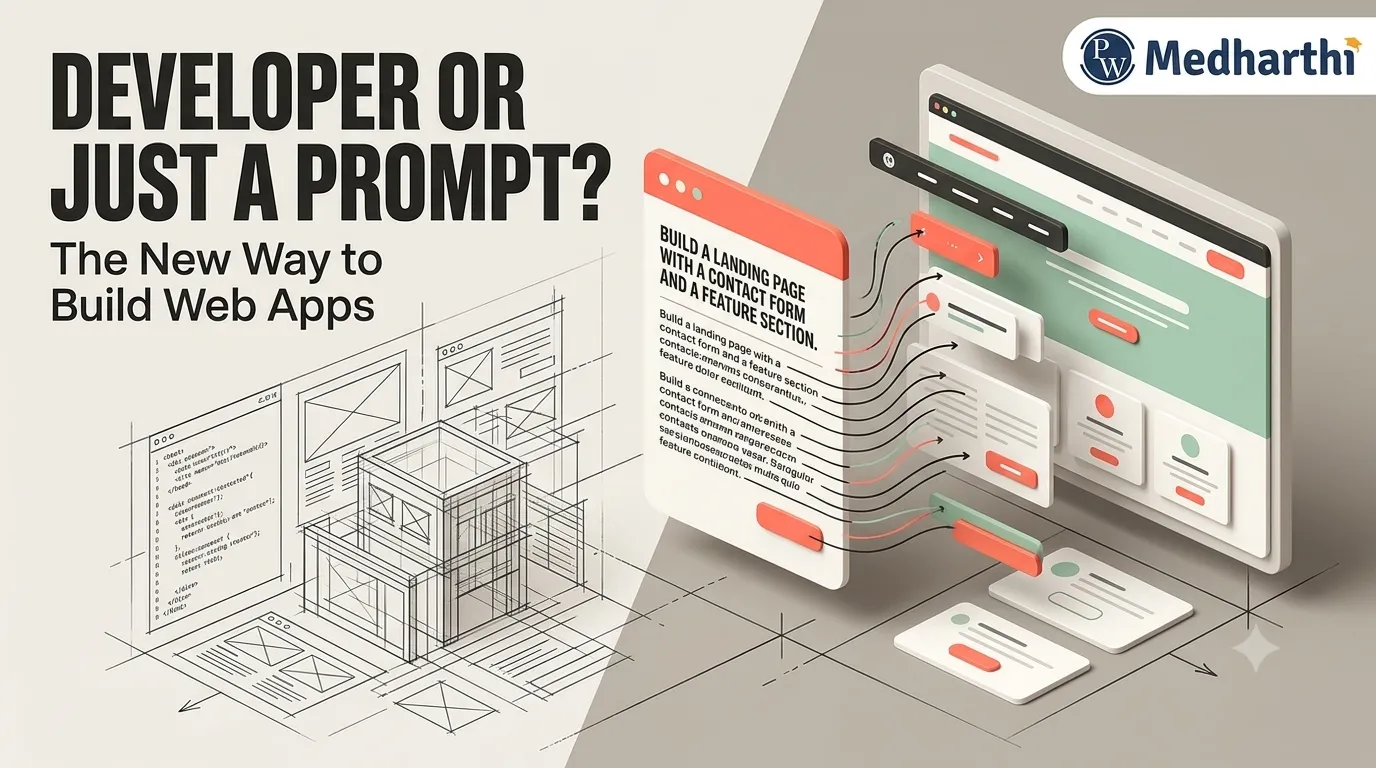
Same idea. Very different clocks. So the real question is no longer whether AI can build a web app. It's this: would you hire a developer, or just prompt AI?
The Old Route vs the Prompt Route
Here is what building a smart web app used to involve, next to what it takes today:
Notice how each row used to be a separate skill, a separate setup or a separate bill. That is the real shift.
|
The old route |
The prompt route |
|
|
Front end |
Learn React and Tailwind, or find someone who already knows them |
Describe the look and layout in plain English |
|
Back end |
Set up servers |
Live preview loads in 20 to 40 seconds, with no local server and no VS Code |
|
AI access |
Pay AI companies for API access |
Free for testing and app creation |
|
Time for a full video dashboard |
3 to 4 days at least |
About 4 minutes |
|
Making changes |
Edit the code |
Type the change in chat |
Curious how the old route works under the hood? An Online BCA from PW Medharthi builds the programming, databases and web development foundations behind apps like this.
Meet Your Builder: Google AI Studio
If you have used Gemini, AI Studio will look familiar: clean, simple, no confusion. But Gemini is a chat model. You can talk to it and generate images, and that's about it. AI Studio is where you actually build things. Four features make it stand out:
-
A huge context window: up to 2 million tokens. Tokens are the small chunks of words an AI reads, so a bigger window means more material in one go.
-
Multimodal input: text, audio, images, code and video files of up to an hour, all handled on one screen.
-
Build mode: code generation and a live preview side by side.
-
Zero cost: enterprise-level Gemini models, free for testing and app creation.
Which of these four would save you the most time on your next idea?
Before You Start
The setup is short. Tick these off, and you are ready to build.
-
A computer or phone with a browser and an internet connection
-
An app idea, even a rough one (or simply use VideoPulse AI as practice)
-
A short sample video to test the player, if you have one handy
-
A few minutes of uninterrupted time
Heads up: every AI build comes out slightly different. Your dashboard may not match the description in this tutorial word for word. That is normal, and you can steer it with follow-up prompts.
Build It Yourself: VideoPulse AI in 7 Steps
No coding background needed. Follow along, and you will have a working dashboard in minutes.
Step 1: Open AI Studio. Search for “Google AI Studio” and click the first link.
Tip: Make sure you open AI Studio and not the regular Gemini chat. The two look alike, but only AI Studio lets you build apps.
Step 2: Switch to Build mode. This is where prompts turn into apps.
Step 3: Paste your base prompt. The name VideoPulse AI is just an example; call yours anything.
Trick: Paste the prompt into a notes app first and edit it there. Swapping the name, tabs or style to suit your own idea takes seconds.
Step 4: Click Build and wait about 20 to 40 seconds. Behind the scenes, AI Studio assembles the React environment, the layout and the event listeners. You should see a professional-looking tool with neon-dark styling, responsive tabs, an upload box and one-click copy buttons.
What you should see:
-
A dark, neon-styled dashboard
-
Responsive tabs on the right
-
A video upload box on the left
-
One-click copy buttons
Behind the scenes: while you wait, AI Studio is setting up the whole front-end React environment, designing the layout and wiring up the event listeners, which are the bits that make buttons respond. That is setup work you would otherwise do yourself.
Caution: give it the full 20 to 40 seconds before you judge the result. Stopping early can leave you looking at an unfinished preview.
Step 5: Add the next layer. Send this in the chat:
What to expect: the app now works with a sample video. It parses dummy transcript data, shows clickable chapters with timestamps on the player, and produces ready-to-post Twitter and LinkedIn snippets. Watch how quickly the code updates.
Step 6: Test it. Play the video, then click a chapter or a key takeaway on the right. The player on the left should jump to that exact timestamp.
Check this: click a chapter, then a key takeaway. If the player jumps to the exact timestamp each time, your dashboard works. If it does not, see the troubleshooting table below.
Step 7: Tweak it with plain English. Want a new feature or a new look? Just ask:
Add an Export Report to PDF button.
Change the colour theme to cyberpunk blue.
The preview updates instantly, and you never touch the code.
Tip: ask for one change at a time. If you request a PDF button, a new theme and two extra tabs together, it is harder to tell which change went wrong.
Want to go beyond prompting? Explore PW Medharthi's Professional Certificate Programme in Generative AI and Machine Learning by IIT Bhubaneswar.
Troubleshooting: When Things Do Not Look Right
Even good builds need a nudge now and then. When something is off, you do not debug code. You simply tell the AI what to fix.
01: Preview looks different from the description
“Move the video player to the left and the tabs to the right.”
02: Clicking a chapter does nothing
“Make the chapters clickable so the player jumps to the exact timestamp.”
03: The layout feels crowded
“Simplify the layout and give the cards more spacing.”
04: You do not like the colours
“Change the colour theme to cyberpunk blue.”
05: A feature is missing
“Add an Export Report to PDF button.”
06: The build looks unfinished
Wait the full 20 to 40 seconds, then ask it to complete what is missing.
Why That Prompt Worked: The 5-Part Formula
The base prompt was not magic. It followed a simple pattern you can reuse for any app idea:
Think of the table below as a recipe card: five ingredients, one job each. Once you recognise them, you can spot what is missing from any weak prompt.
|
Ingredient |
What it does |
In our prompt |
|
Purpose |
Tells AI what you are building |
A single-page web app for AI video insights and chapter generation |
|
Name |
Gives the tool an identity |
VideoPulse AI |
|
Look |
Sets the visual style |
Sleek dark glassmorphism dashboard |
|
Layout and features |
Says what goes where and what it does |
Video drop area on the left, right panel with three tabs, cards, a one-click copy button |
|
Tech |
Names the tools to build with |
HTML, Tailwind CSS and JavaScript |
Pro tip: Build in layers. Get the design right first, then add the video player, then the extras. Short, specific prompts beat one giant wall of text.
Tips and Tricks for Better Prompts
Good prompts are less about clever wording and more about clear thinking. These habits will improve your first draft every time.
-
Lead with the purpose. Start by saying what the app is for, such as a video insights and chapter generation platform.
-
Describe the look in a few words. Terms like “sleek”, “dark” and “glassmorphism” give the AI a clear style to follow.
-
Say where things go. “Video area on the left, tabs on the right” removes guesswork.
-
Name the tools if you care. Mentioning HTML, Tailwind CSS and JavaScript keeps the build consistent.
-
Build in layers. Get the design right first, then add the player, then the extras.
-
Keep a prompt library. Save prompts that worked. Reusing a good one is faster than starting from scratch.
Your First-Build Checklist
-
Opened Google AI Studio and switched to Build mode
-
Pasted the base prompt and clicked Build
-
Sent the follow-up prompt for the video player
-
Clicked a chapter and watched the player jump to the timestamp
-
Tried at least one tweak prompt
So, Developer or Prompt?
For the first draft of an idea, prompt. You will learn faster, spend nothing and have something to show in minutes. When you are ready to understand and own what you build, invest in the skills behind it.
One last tip: do not wait for the perfect idea. Build the VideoPulse AI dashboard first, then tweak it into something that is yours. You will learn more from one working app than from ten plans.
Ready to turn curiosity into a career? Compare UG and PG pathways on PW Medharthi's online degree page and find the one that fits your goals.
Key Takeaways
Before you dive in, here’s what you’re about to create. No software downloads, no complicated setup, and no coding skills required: just your idea and Google AI Studio.
-
Build something real: Create VideoPulse AI, a video insights dashboard that generates chapters, social media clips, and key takeaways.
-
Use a free AI tool: Work directly in Google AI Studio’s Build mode, with ₹0 cost for testing and app creation.
-
Get started in about 4 minutes: Go from a simple prompt to a working dashboard in just a few minutes.
-
Skip the coding barrier: You don’t need prior programming experience to get started.
-
Learn a reusable prompt formula: Discover a simple 5-part formula you can use to turn your next app idea into reality.